Authentication
PolicyClue supports single sign-on (SSO) via Microsoft Entra ID. This guide covers how to configure an app registration in Microsoft Entra and connect it to your PolicyClue deployment.
Prerequisites - A Microsoft Entra ID tenant with Global Administrator or Application Administrator role.
1) Create the App Registration
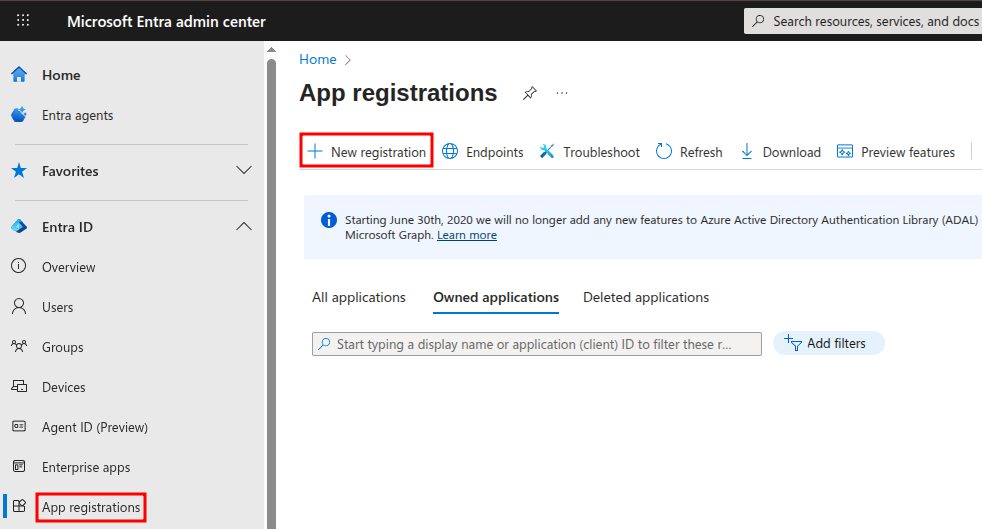
Open the Microsoft Entra admin center. Click on Entra ID > App registrations > New registration.
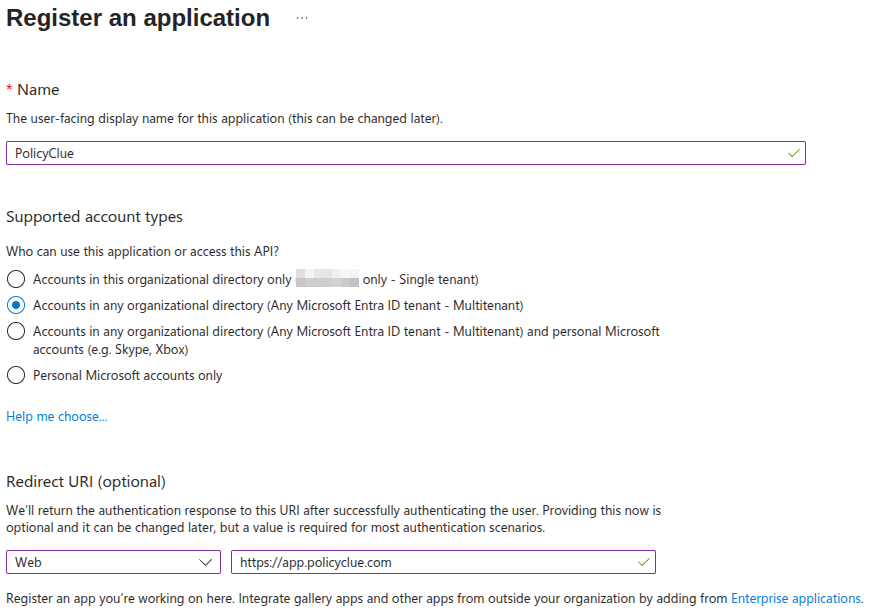
Set the Name to PolicyClue.
Set the Supported account types to Accounts in any organizational directory (Any Microsoft Entra ID tenant - Multitenant).
Set the Redirect URI to Web and enter https:// followed by your PCLUE_PORTAL_HOST (e.g. https://app.policyclue.com/).
2) Note the Application Details
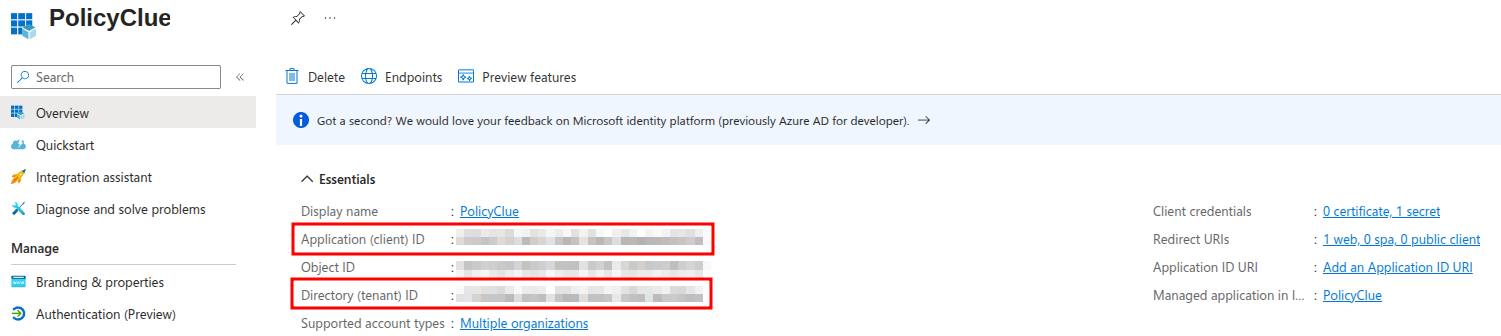
After clicking Register, you will be redirected to the Overview page of the newly created app registration.
Here you will find the first two environment variables needed for PolicyClue.
Copy the Application (client) ID for MSENTRA_CLIENT_ID.
Copy the Directory (tenant) ID for MSENTRA_TENANT_ID.
3) Create a Client Secret
Go to Certificates & secrets and click New client secret.
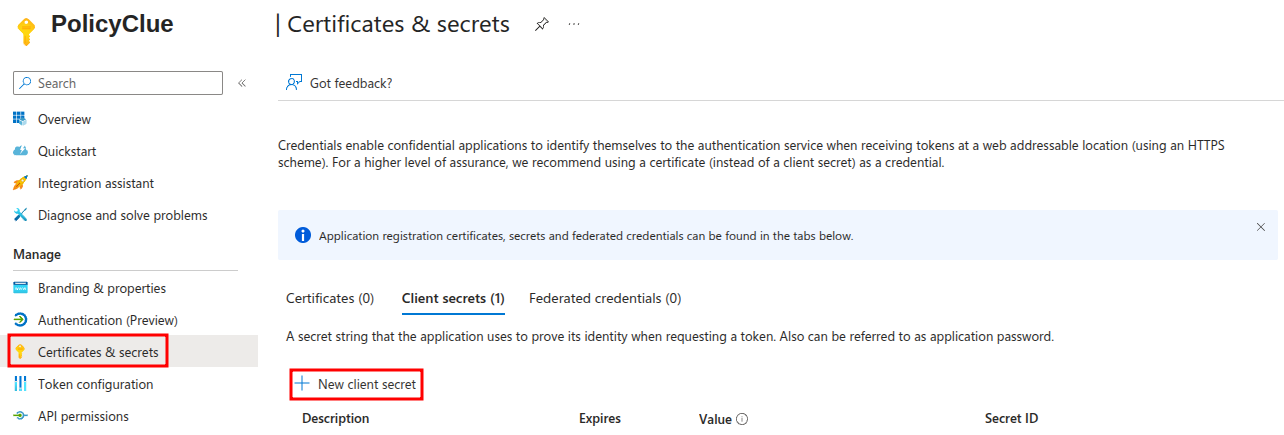
Set Description to prod and Expires to 365 days (12 months).
Copy the Value field of the newly created secret for MSENTRA_CLIENT_SECRET.
Note: The secret value is only visible once and must be regenerated if not saved.
4) Configure PolicyClue
Add the environment variables to your .env file: MSENTRA_CLIENT_ID, MSENTRA_CLIENT_SECRET, MSENTRA_TENANT_ID.
Restart the stack: docker compose down && docker compose up -d