Creating a Policy
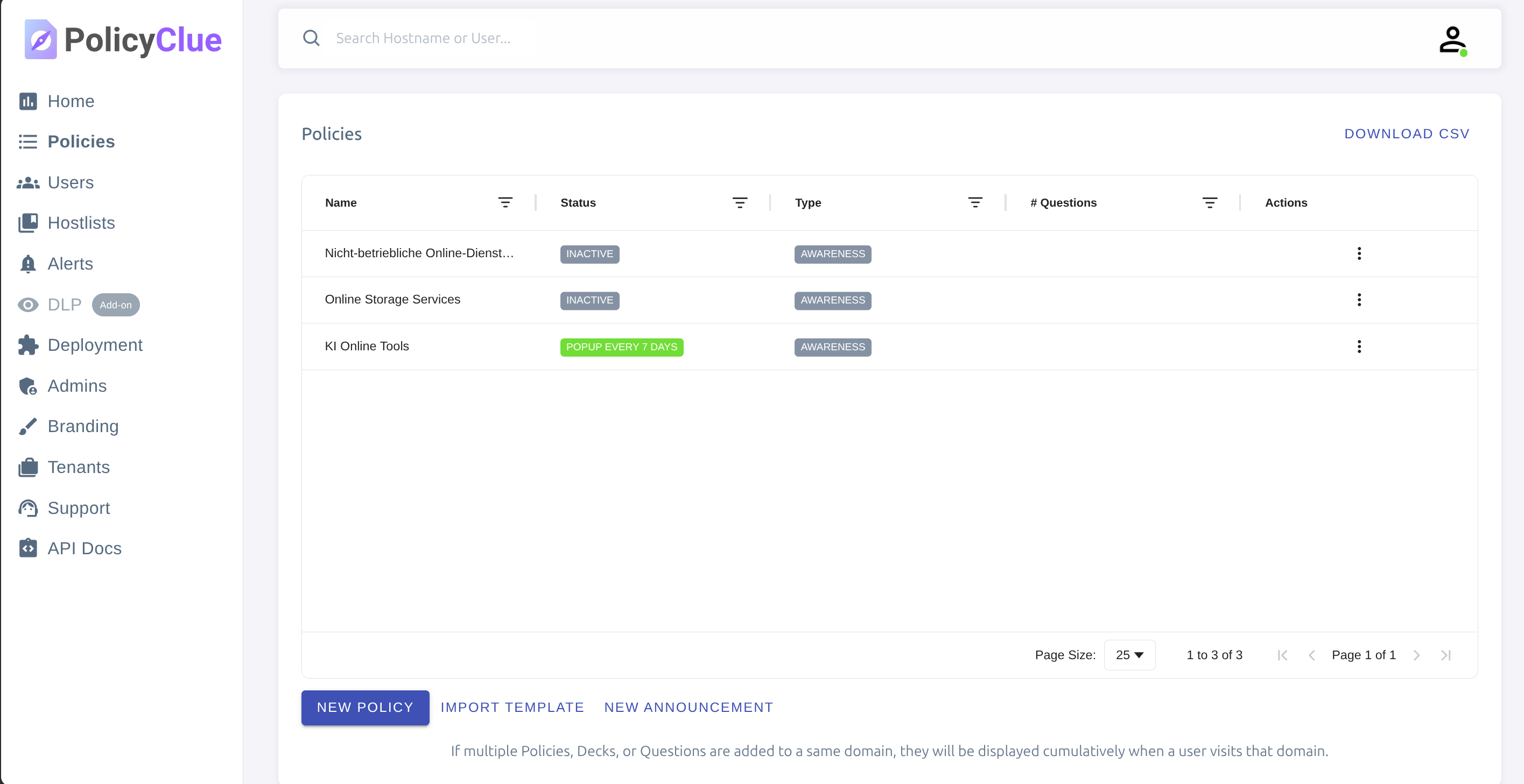
Open Policies and click Create policy.
1. Name and purpose
Give the policy a descriptive name and a short description so other admins understand when it applies. Names like "Cloud file sharing — warn" or "AI tools — record prompts" are more useful than "Policy 3".
2. Attach Matching Rules
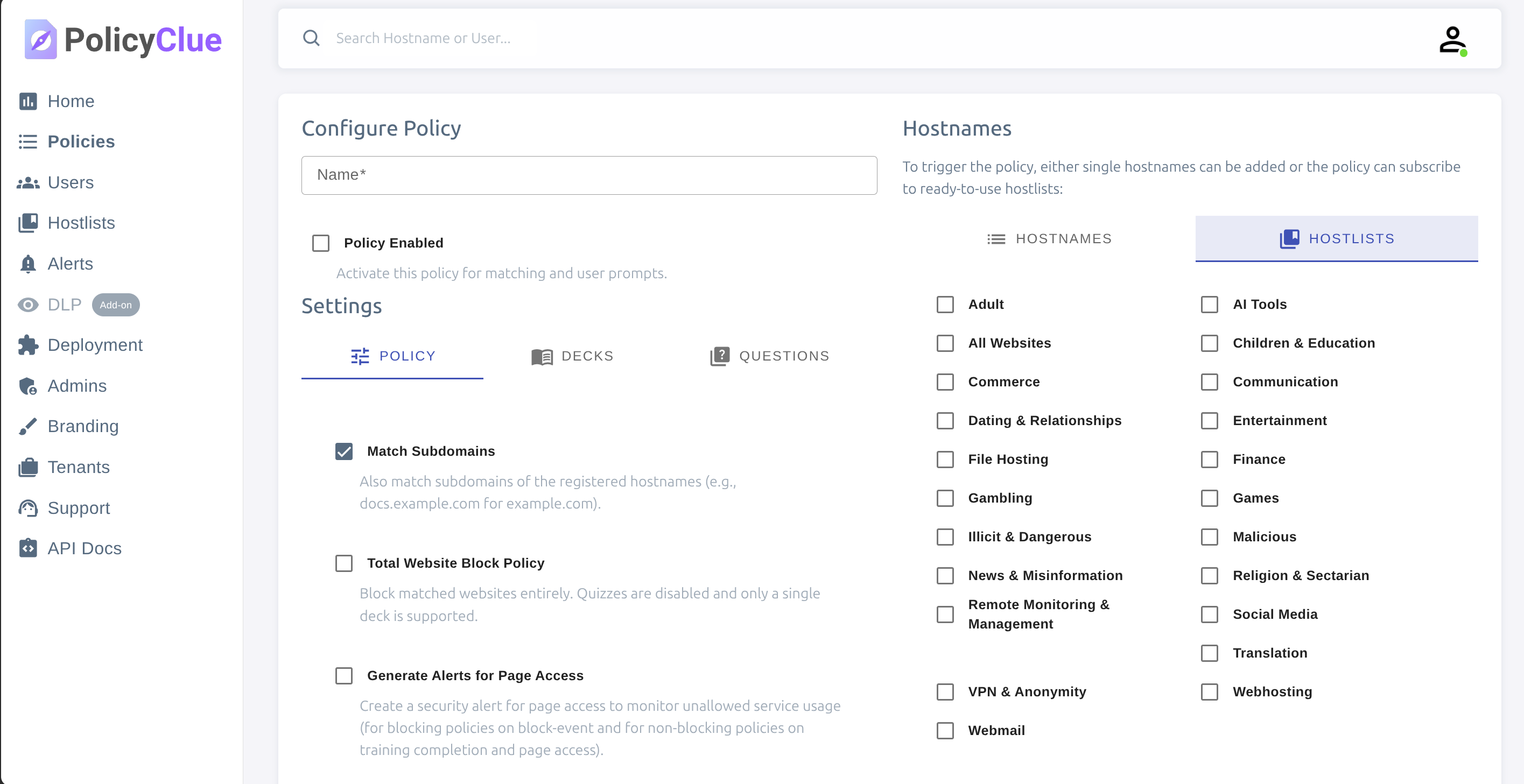
Matching Rules define where the policy applies. Attach one or more existing rule sets, or create a new one from Matching Rules → Create Rule Set first.
The rule set preview lists domains seen in your tenant's last 30 days of activity and shows which of them each rule would match. Sites your users haven't visited recently won't appear in the preview even if they would match.
To apply a policy everywhere, attach the built-in "All Websites" rule set.
3. Attach Trainings
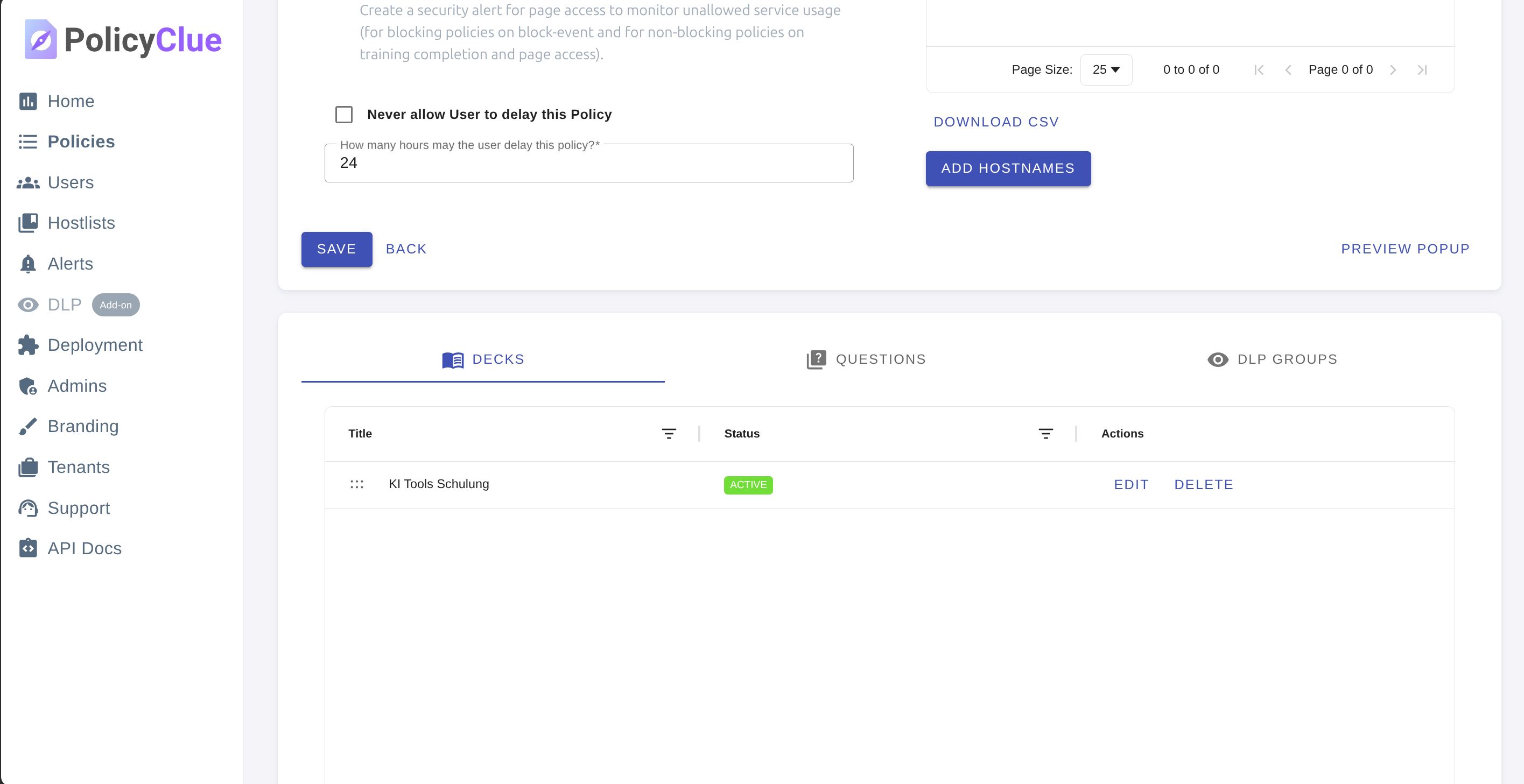
On the Trainings tab, attach one or more trainings. A training holds the decks and quiz questions users see. Author the training content under Awareness → Trainings — a single training can be reused across multiple policies.
4. Configure enforcement
Choose whether matched sites are warned, blocked, or silently logged. Start with warn to build awareness before enabling blocks. See Policy Settings for each toggle in detail.
5. Save and enable
Save the basic details, then flip the Status switch to Enabled. Changes propagate to users' browser extension on its next configuration refresh (a few minutes) — no reload needed on the user side.
Edit a policy at any time; the same refresh cycle applies.