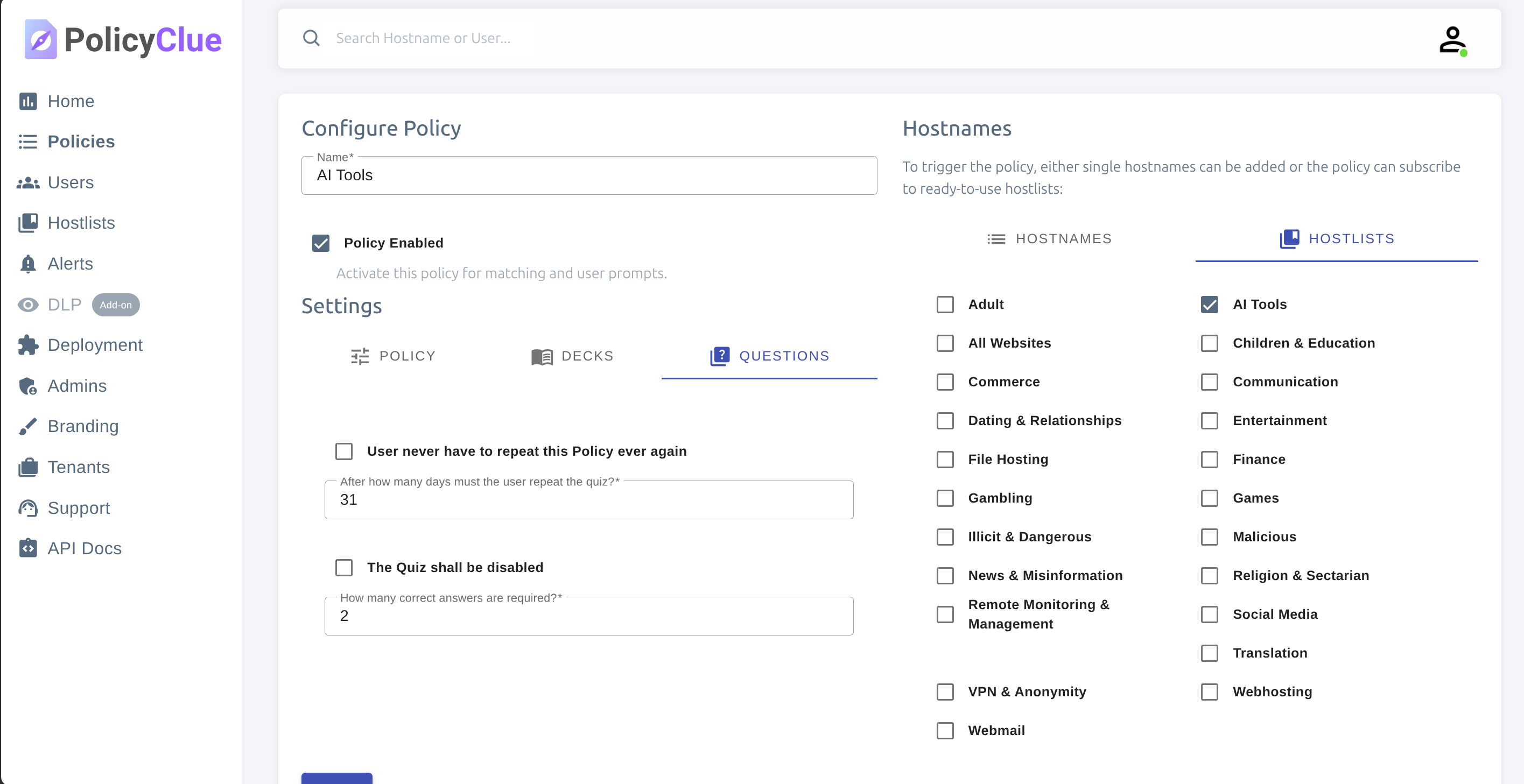
Policy Settings
A policy decides where PolicyClue intervenes and what it does there. This page is the full reference for every toggle in the policy editor.
Anatomy of a policy
- Matching Rules — one or more reusable domain/URL sets that decide where the policy applies. To apply a policy everywhere, attach the built-in "All Websites" rule.
- Trainings — reusable content bundles (decks and quiz questions) attached on the Trainings tab. A training can be shared across policies.
- Enforcement — whether users see a warning, a block screen, or nothing at all.
- Intervals — how often reminders reappear.
- Alerting — whether every hit produces an alert for investigation.
Core switches
- Status — enable or disable the policy without deleting it.
- Block matched websites — matched websites are blocked entirely. If a training is linked to the policy, the first deck is shown as the block message; otherwise a default block page is displayed. Requires an Awareness subscription.
- Alert on every hit — generate an alert whenever the policy matches. Useful for tuning or for sensitive sites where you want a record of every visit.
Matching
- Matching Rules — select one or more rule sets that define where the policy applies. See Matching Rules for how to build them.
- Subdomain matching — when enabled, matches subdomains as well as the base domain (e.g. attaching
google.comalso matchesmail.google.com). - Computer roles — restrict the policy to computers tagged with specific roles via managed policy (GPO/MDM). Leave empty to apply to all computers. See Chrome Managed Policies for the tagging side.
Platforms
Apply to Platforms — select which platforms this policy applies to: Browser Extension, Outlook Add-in, and/or Microsoft Teams. A policy must have the Microsoft Teams platform enabled for its DLP patterns to be scanned against Teams messages.
Trainings
Link one or more trainings on the Trainings tab. Training content — decks, questions, quiz settings, popup mode, delay — is edited on the training itself, under Awareness → Trainings. Sharing a training across policies keeps content maintenance in one place.
See Awareness for training authoring.
Anti-Spoofing (requires Security module)
Per-policy real-time detection of look-alike and credential-harvesting sites, plus phishing indicators in email HTML for the Outlook add-in.
Choose one of four modes:
- Disabled — no spoofing detection.
- Report Only — silently log alerts; the user is not notified.
- Warn & Overridable — warn the user; they can dismiss and proceed.
- Block if Certain — block high-confidence detections; warn on lower-confidence ones.
Governance (requires Governance module)
Configured on the Governance tab of the policy:
- Input Recording — capture what users type into monitored pages; captured text appears on the GenAI Prompts dashboard.
- File Transfer Recording — log file uploads and downloads on matching pages; entries appear on the Data Flows dashboard.
See Governance for the dashboards and PII classification behavior.
DLP (requires DLP module)
Attach one or more DLP groups to the policy. Only enabled patterns from linked groups are applied on matching pages. See DLP for group and pattern authoring.
Download Guard (requires Security module)
Attach one or more download filters. Filters run on downloads from matching pages (Browser Extension) or attachments in matching Outlook messages. See Security for filter modes and templates.
Practical guidance
- Start with warn + alert on every hit to build awareness and see impact before enabling blocks.
- Keep reminder intervals reasonable; too-frequent prompts reduce effectiveness.
- Prefer reusing Matching Rules over duplicating them across policies — one edit propagates everywhere.
- Trainings are reusable too. Author once, attach to many policies.