Skip to content

Data Loss Prevention (DLP) Module

The DLP module detects and prevents sensitive data leakage across browser, email, and Teams interactions. It monitors text input in form fields, contenteditable elements, and file uploads on websites that match your policies - scans email body text and attachments in Microsoft Outlook - and monitors all Teams channel and chat messages server-side via the Microsoft Graph API. It requires an active subscription.

DLP is available in:

  • Browser Extension (Chrome) - monitors websites matching your policies
  • Outlook Add-in - monitors email compose windows and attachments before send
  • Microsoft Teams - monitors all channel and chat messages server-side (requires Azure AD app registration)

Getting Started

  • Open the DLP section to review groups and patterns.
  • Start with available templates where applicable, then adjust enforcement levels and exceptions.
  • Communicate changes to users so expectations are clear on specific sites.

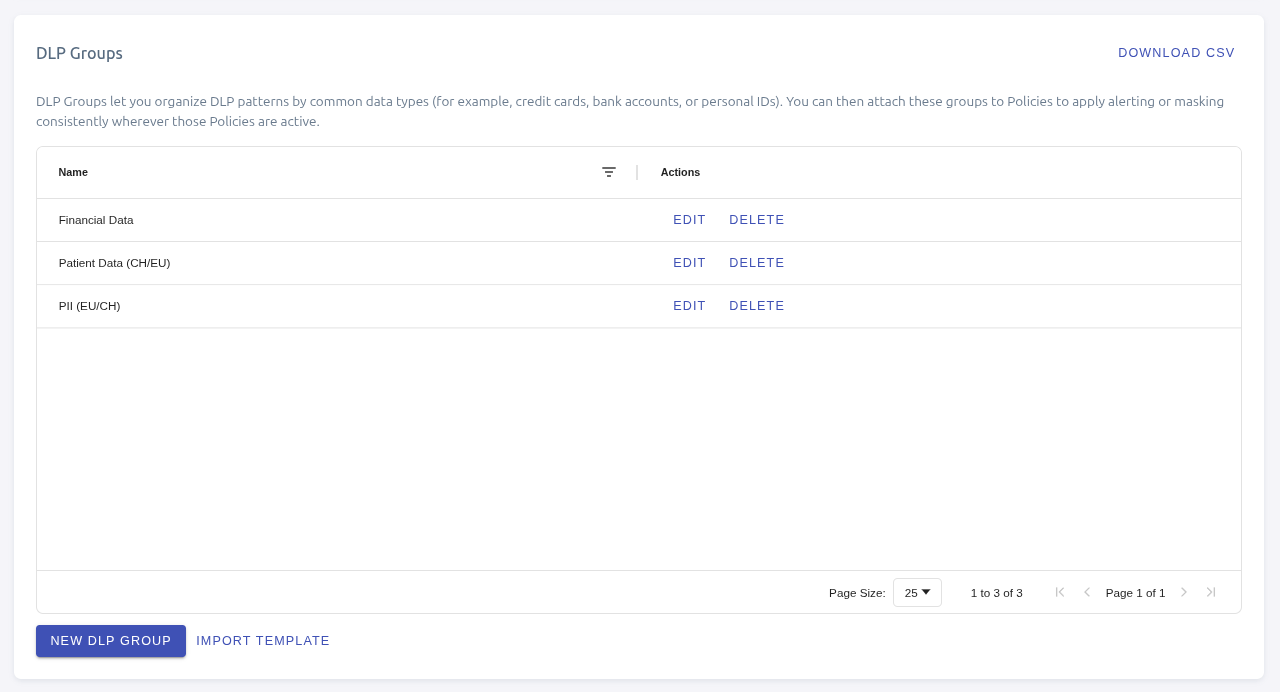
DLP overview

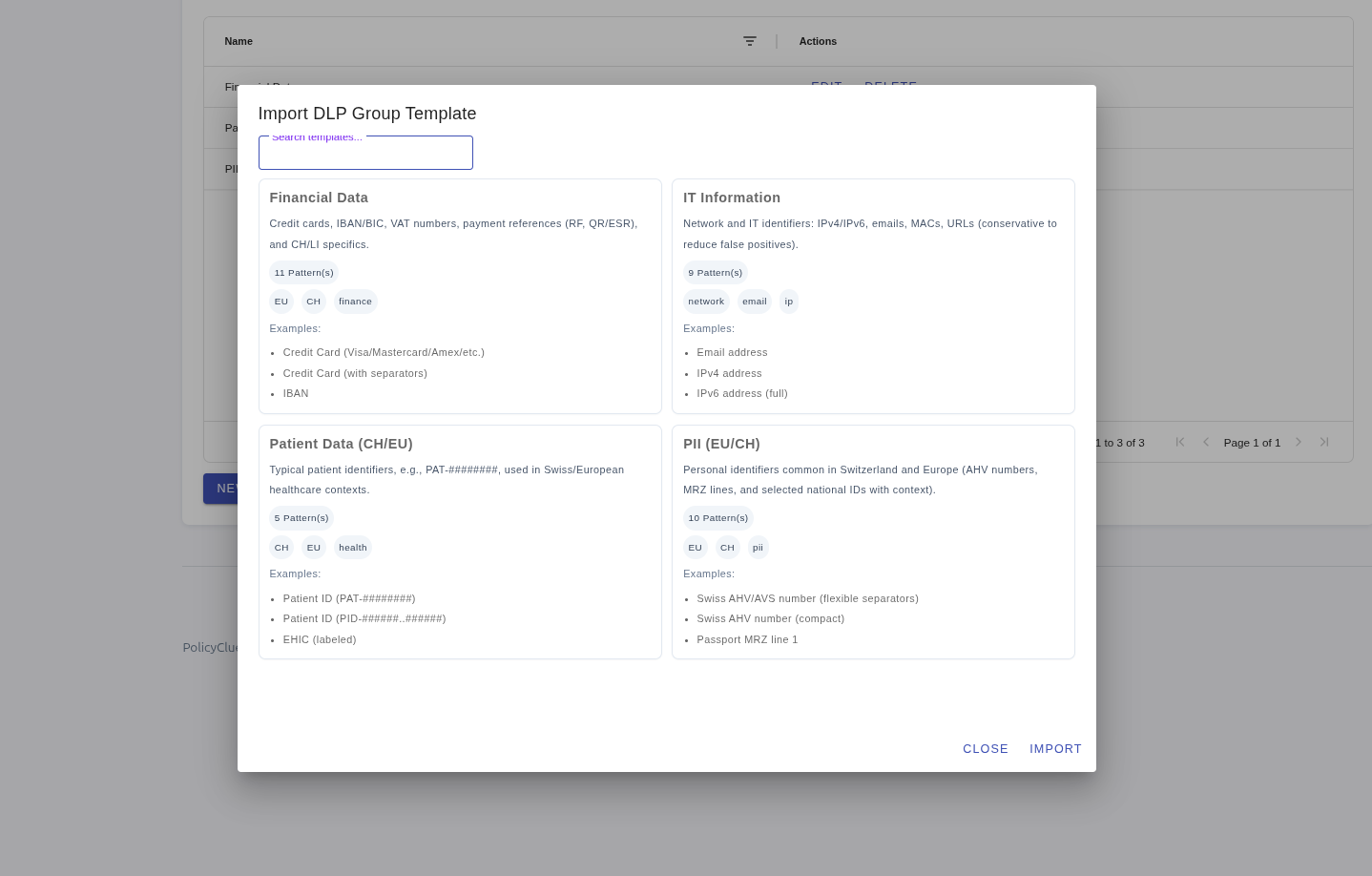
DLP template import

DLP Groups

DLP patterns are organized into DLP Groups. Each group contains one or more patterns and can be linked to policies to control where scanning is applied.

  • Create groups from the DLP section in the portal
  • Link groups to one or more policies - scanning only activates on websites that match a policy's rules
  • Each group can contain multiple pattern types
  • A single policy can have multiple DLP groups attached

Linking Groups to Policies

DLP scanning is not global. It is tied to policies through a many-to-many relationship:

  1. Create your DLP group and add patterns
  2. Open a policy and attach one or more DLP groups
  3. When a user visits a site matching that policy, the browser extension receives the DLP patterns and begins scanning

Only enabled patterns from linked groups are sent to the browser extension and Outlook add-in. Disabled patterns are excluded at the API level.

Templates

PolicyClue ships with predefined DLP group templates that you can import as a starting point. When creating a new DLP group, select Import from template to populate it with curated patterns.

Available templates:

Financial Data

Credit cards, IBAN/BIC, VAT numbers, payment references, and CH/LI specifics.

PII (EU/CH)

Personal identifiers common in Switzerland and Europe.

IT Information

Network and IT identifiers, conservative to reduce false positives.

Patient Data (CH/EU)

Typical patient identifiers used in Swiss/European healthcare contexts.

File Type Detection

Detect and report file types by extension and MIME type. Uses the extension and mime scan targets. All 25 patterns are enabled and set to report-only (mode 0) by default. Admins can raise enforcement modes as needed.

Security:

  • Executable files by extension (.exe, .msi, .bat, .cmd, .ps1, .vbs, etc.)
  • Script files by extension (.js, .vbe, .wsh, .reg, .lnk, etc.)
  • Archive files by extension (.zip, .rar, .7z, .tar, .gz, etc.)
  • Macro-enabled Office documents by extension (.docm, .xlsm, .pptm, etc.)
  • Disk image files by extension (.iso, .dmg, .vhd, .vmdk, etc.)
  • Database files by extension (.sql, .sqlite, .mdb, .accdb)
  • Certificate and key files by extension (.pem, .key, .crt, .p12, .pfx, etc.)
  • Windows executables by MIME type (application/x-msdownload, application/x-dosexec, etc.)
  • Archive formats by MIME type (application/zip, application/x-rar-compressed, etc.)
  • ELF/Mach-O binaries by MIME type (application/x-elf, application/x-mach-binary, etc.)
  • SQLite databases by MIME type
  • WebAssembly modules by MIME type

Developer and IT:

  • Source code files by extension (.py, .java, .go, .ts, .sh, etc.)
  • Configuration and environment files by extension (.env, .yml, .conf, .htpasswd, etc.)
  • Legacy MS Office documents by MIME type
  • Backup and export files by extension (.bak, .dump, .dmp, .snapshot, etc.)

Media:

  • Audio files by MIME type (audio/mpeg, audio/flac, audio/ogg, etc.)
  • Video files by MIME type (video/mp4, video/webm, etc.)
  • Image files by MIME type
  • PDF documents by MIME type

Healthcare and medical:

  • Healthcare data files by extension (.hl7, .cda, .ccd, .fhir, .dicom, .oru, .adt, etc.)
  • Medical imaging files by extension (.dcm, .dicom, .nii, .mha, etc.)

Banking and finance:

  • Banking and financial data files by extension (.swift, .mt940, .camt, .pain, .sepa, .ofx, .bai, etc.)
  • Swiss banking files by extension (.dta, .lsv, .ezag, .esr, .camt053, .pain001, etc.)
  • Accounting and tax files by extension (.xbrl, .saft, .fec, .elster, etc.)

Templates are tracked via an internal template ID so you can see which groups originated from a template.

Features

Scan Targets

Each DLP pattern has a scan target that controls what the pattern is matched against. This allows DLP groups to contain patterns that scan different aspects of user data.

Scan Target Description Matched Against
Content (default) Text content scanning Form fields, email body text, extracted text from files
Extension File extension matching The file extension of uploads/attachments (e.g. exe, bat, zip)
MIME File type detection via magic bytes The detected MIME type from file binary signatures (e.g. application/x-msdownload)

Content is the default and matches the existing behavior - patterns scan text content.

Extension patterns use regex to match against file extensions. For example, ^(exe|msi|bat|cmd)$ blocks executable file types. This is useful for simple file type restrictions based on the filename.

MIME patterns use regex to match against the MIME type detected from the file's magic bytes (binary signature at the start of the file). This is more reliable than extension matching because it detects the actual file type regardless of the filename. For example, a .txt file that is actually a renamed .exe will still be detected as application/x-msdownload.

Extension and MIME patterns are available on: - Browser Extension - scans file uploads - Outlook Add-in - scans email attachments before send

A single DLP group can contain patterns with different scan targets. For example, a "File Type Detection" group might contain both extension patterns (for script files that lack distinctive magic bytes) and MIME patterns (for binary executables where magic byte detection is reliable).

Text-based DLP Scanning

Detects sensitive data patterns in text content across both the browser extension and the Outlook add-in.

Browser Extension:

  • Patterns are defined as regular expressions (regex) with Unicode support
  • Supported elements: <input>, <textarea>, and contenteditable elements (e.g. rich text editors)
  • Scanning is event-driven - the extension checks content on focus out, input, paste, submit, and Enter key events
  • Duplicate alerts for the same pattern and matched value are automatically deduplicated

Outlook Add-in:

  • Scans the email body (plain text) when the user clicks Send via the on-send handler
  • Duplicate alerts for the same pattern and matched value are automatically deduplicated

File-based DLP Scanning

Monitors file uploads (browser extension) and email attachments (Outlook add-in) for sensitive content. Files are scanned client-side before upload or send.

Browser Extension:

  • Triggered on file input changes and drag-and-drop onto file inputs
  • The extension extracts text content and runs the same pattern library against it

Outlook Add-in:

  • Scans email attachments before send using the same file format support and pattern library
  • Attachment content is retrieved via the Office.js API and scanned locally

Supported file formats:

Format Extensions Method
PDF .pdf Text extraction via PDF.js (up to 5 pages, 200KB cap)
Microsoft Office (OOXML) .docx, .xlsx, .pptx ZIP decompression, XML text extraction
OpenDocument (ODF) .odt, .ods, .odp ZIP decompression, XML text extraction
Plain text .txt, .md, .json, .xml, .csv, .log, .yaml, .yml Direct UTF-8 reading
Unknown types any Sniff mode - reads first 128KB as text

Limits:

  • PDF scanning is capped at 5 pages and 200,000 characters
  • Overall file scanning is capped at 10MB per file
  • OOXML extraction reads from word/document.xml, xl/sharedStrings.xml, and ppt/slides/slide1-3.xml (including headers/footers for Word)
  • ODF extraction reads from content.xml, styles.xml, and meta.xml

Enforcement Modes

Each pattern has a configurable enforcement mode that controls what happens when a match is detected. The same four modes apply across both the browser extension and the Outlook add-in:

Mode Name Browser Extension Outlook Add-in Microsoft Teams
0 Report Log the detection silently - no user-visible action Alert logged silently - send allowed Alert created, message untouched
1 Alert Show a popup notifying the user - no masking Show a notification in the task pane - send allowed Alert created, message untouched
2 Mask & Overridable Mask the matched text with asterisks, show popup with override option Show alert with override option - send blocked until user overrides Policy violation flag - message content blocked (best-effort)
3 Mask Mask the matched text with asterisks - no override, but user can submit an appeal reason Send blocked - user can submit an appeal reason but cannot proceed Policy violation flag - message content blocked (best-effort)

Note

Enforcement modes 2 and 3 behave identically in Microsoft Teams. PolicyClue sets a policyViolation flag on the message via Graph API, which blocks access to its content and shows a policy tip. This requires ChannelMessage.UpdatePolicyViolation.All / Chat.UpdatePolicyViolation.All permissions and the Communications DLP service plan (E5 or equivalent). If the tenant lacks this license, enforcement silently degrades to alert-only - the DLP match is still reported as an alert.

How masking works (browser extension):

  • For <input> and <textarea>: matched text is replaced with * characters (same length as the match)
  • For contenteditable elements: the extension walks the DOM text nodes and replaces matched content with asterisks
  • Masking is applied locally in the browser before the data leaves the field

How blocking works (Outlook add-in):

  • The add-in registers an on-send handler that checks the email body and attachments when the user clicks Send
  • In mode 2, the user can override the detection via the task pane and proceed with sending
  • In mode 3, sending is blocked - the user can submit an appeal reason but cannot proceed; the appeal is logged as a DLP_BLOCK_APPEAL alert
  • If an error occurs during on-send scanning, sending is allowed (fail-open) to avoid permanently blocking the user

User Overrides

When a pattern uses enforcement mode 2 (Mask & Overridable), users can override the detection and proceed. The override popup requires the user to select a reason:

Reason Description
false_positive The detection is incorrect
business_need Business justifies sharing this data
trusted_destination The destination is trusted
internal_data The data is internal/non-sensitive
public_info The information is publicly available
other Other reason

Once overridden, the pattern ID is added to an in-memory override set for the current session (page session in the browser, compose session in Outlook). Subsequent matches for that same pattern will not trigger again in that session.

Each override generates a DLP_OVERRIDE alert with the selected reason, providing an audit trail.

Block Appeals (Mode 3)

When a pattern uses enforcement mode 3 (Mask), the detection is not overridable - the content remains blocked. However, users can submit an appeal explaining why they believe the detection is incorrect or why they need access. The appeal uses the same reason dropdown as overrides.

Submitting an appeal generates a DLP_BLOCK_APPEAL alert with the selected reason and optional justification, providing visibility into blocked detections that users consider problematic. This can help administrators identify patterns that need tuning or exceptions.

Pattern Exceptions

Each pattern can have one or more exceptions - string values that, if found within a match, cause that match to be ignored.

For example, if you have a credit card pattern but want to allow the test card number 4111111111111111, add it as an exception. When the regex matches that number, the exception check will see the substring and skip the detection.

  • Exceptions use substring matching (not regex)
  • Exceptions are managed per pattern in the group editor
  • The browser extension and Outlook add-in receive exceptions alongside patterns and apply them client-side
  • The Teams server-side scanner applies exceptions identically during pattern matching

This is useful for:

  • Known test data (test credit cards, dummy IBANs)
  • Legitimate values that match a broad pattern
  • Reducing false positives without narrowing the regex

Case Insensitive Matching

Each pattern has an optional Case Insensitive toggle. When enabled, the pattern matches regardless of upper/lower case (e.g. "John" also matches "john" or "JOHN"). This flag is applied per pattern and respected by both the portal preview and the browser extension.

Internally both clients apply the i flag to the regex alongside the default gmu (global, multiline, Unicode) flags.

CSV Import

You can bulk-import patterns from a CSV file directly in the group editor:

  1. Open a DLP Group and click Import CSV
  2. Select your CSV file and configure the delimiter
  3. Choose which column contains the values to match (and optionally a name column)
  4. Set import options: case insensitive, word boundary matching, enforcement mode, name prefix, and enabled state
  5. Click Import - patterns are created one by one with a progress bar

Each CSV row becomes an individual pattern. Values are automatically escaped into safe regex. Word boundary matching wraps values with \b...\b so partial matches are avoided.

Regex Validation

All patterns are validated server-side before saving:

  • The backend checks that the regex compiles successfully
  • ReDoS protection: nested quantifiers (e.g. (a+)+, (a*)+, (\d+){2,}) are blocked to prevent regular expression denial-of-service attacks that could freeze the browser
  • Invalid patterns are rejected with an error message

Tips for writing patterns:

  • Use \b word boundaries to reduce false positives
  • Use non-capturing groups (?:...) instead of capturing groups when you don't need backreferences
  • Keep patterns as specific as possible - broad patterns generate noise
  • Use labeled patterns (e.g. requiring a keyword like "IBAN:" before the number) to reduce false matches on generic number sequences
  • Test your patterns in the portal preview before enabling enforcement

Alerts

DLP events generate alerts visible in the Alerts section. There are four alert types:

Alert type Trigger
DLP_MATCH Sensitive text pattern found in a form field, or file upload allowed with a match (modes 0 and 1)
DLP_FILE_MATCH Sensitive pattern found in an uploaded file and the upload was blocked or overridden (modes 2 and 3)
DLP_OVERRIDE User overrode a DLP detection (mode 2) with a justification reason
DLP_BLOCK_APPEAL User submitted an appeal reason on a blocked detection (mode 3) - the block remains in effect

Alert Details

Each DLP alert includes:

  • DLP Group ID and name - which group the pattern belongs to
  • DLP Pattern ID and name - which specific pattern triggered
  • Matched value - the actual text that was matched
  • Filename - for file-based detections, the name of the scanned file (browser: uploaded file, Outlook: attachment name)
  • Policy ID - which policy was active
  • URL domain - the website where the detection occurred (browser extension), the specific recipient domain whose policy triggered the match (Outlook add-in), or teams.microsoft.com for Teams
  • User info - user email, display name (Teams), browser/client name and version, computer name
  • Platform - which client platform generated the alert (Browser Extension, Outlook Add-in, or Microsoft Teams)

Webhook Integration

DLP alerts can be forwarded to external systems via webhooks. Configure webhooks in Settings > Webhooks. DLP alert payloads include all the fields listed above.

See Alerts for alert management and Webhooks for webhook configuration.

How It Works End-to-End

Browser Extension

  1. Policy check: When a user navigates to a website, the browser extension calls the /check_site API to determine if any policies match
  2. Pattern delivery: If the matched policy has DLP enabled and groups linked, the API returns all enabled patterns (with exceptions) in the response
  3. Monitoring starts: The extension attaches event listeners to the page for text input monitoring and file upload interception
  4. Detection: When user input or a file upload matches a pattern (and no exception applies), the configured enforcement action is taken
  5. Alert reporting: The extension sends an alert to the /report API endpoint, which indexes it for the alerts dashboard and forwards it to any configured webhooks
  6. Deduplication: Identical alerts (same pattern ID + same matched value) are deduplicated within a page session to avoid alert fatigue

Microsoft Teams

  1. Tenant-wide subscriptions: When an admin configures Azure AD credentials in the portal, PolicyClue automatically creates two Graph API subscriptions - one for all channel messages (/teams/getAllMessages) and one for all chat messages (/chats/getAllMessages)
  2. Webhook notification: When a message is created or edited anywhere in Teams, Microsoft sends a change notification to PolicyClue's webhook endpoint
  3. Message retrieval: PolicyClue fetches the full message content via the Graph API, strips HTML tags, and extracts plain text
  4. Participant domain extraction: PolicyClue fetches the channel or chat member list, extracts each member's email address, and collects the unique domains - the same approach as the Outlook add-in with recipient domains
  5. Per-domain policy resolution: For each participant domain, PolicyClue finds policies whose hostlist matching rules match that domain and that have the "Microsoft Teams" platform enabled. Only DLP patterns from matching policies are applied
  6. DLP scanning: The message text is scanned against the resolved DLP patterns
  7. Enforcement (best-effort): For modes 2/3, PolicyClue sets a policyViolation flag on the message via Graph API, blocking access to its content. This requires the Communications DLP service plan (E5). If unavailable, enforcement is skipped and the alert is still created
  8. Alert reporting: All matches are indexed as alerts with sender information (name, email, user ID) and the Teams context (channel or chat)
  9. Subscription lifecycle: A background worker renews the Graph API subscriptions automatically (they expire after 55 minutes and are renewed with a 20-minute safety margin)

Outlook Add-in

  1. Recipient domain extraction: When composing an email, the add-in extracts all recipient email addresses (To, CC, BCC), splits the domain from each address, and deduplicates them. For example, alice@dropbox.com and bob@dropbox.com produce one domain (dropbox.com), while adding carol@gmail.com produces two (dropbox.com, gmail.com)
  2. Per-domain policy check: The add-in calls /check_site once per unique recipient domain. Each call returns the policies and DLP patterns configured for that domain
  3. Pattern merging: DLP patterns from all domain responses are combined into a single pattern list for scanning. Each pattern retains its policy_id so matches can be traced back to the originating domain
  4. On-send check: When the user clicks Send, the on-send handler scans the email body and all attachments. Content patterns match against extracted text, extension patterns match against file extensions, and MIME patterns match against detected file types from magic bytes
  5. Enforcement: Based on the pattern's enforcement mode, the add-in either logs silently (mode 0), shows a notification (mode 1), prompts for override (mode 2), or blocks the send (mode 3)
  6. Alert reporting with domain tracing: Each alert is attributed to the specific recipient domain whose policy produced the triggering pattern - not just the first recipient. The add-in traces the matched pattern back to its source domain via the policy_id field. Alerts are sent to the /report API endpoint and include the originating domain, attachment names, and override reasons where applicable
  7. Fail-open: If an error occurs during the on-send check, sending is allowed to prevent permanently blocking the user