Creating a Custom Rule Set
Open Matching Rules and select "Create Rule Set". Give it a name.
Adding Rules
Click "Add Rule" to open the rule dialog. For each rule, specify:
- Match Target: Choose between Hostname or URL
- Match Operation: Choose Equals, Contains, Prefix, or Suffix
- Patterns: Enter one pattern per line
Examples
| Goal | Target | Operation | Pattern |
|---|---|---|---|
| Match a specific domain | Hostname | Equals | example.com |
| Match all subdomains containing "facebook" | Hostname | Contains | facebook |
| Match all .edu domains | Hostname | Suffix | .edu |
| Block admin pages | URL | Contains | /admin/ |
| Match PDF downloads | URL | Suffix | .pdf |
| Match a specific API | URL | Prefix | https://api.stripe.com |
Include vs Exclude
- Include rules: Define what the rule set matches
- Exclude rules: Remove specific patterns from the match set
For example, to match all educational sites except a specific one:
- Include: Hostname + Suffix:
.edu - Exclude: Hostname + Equals:
safe.university.edu
Wildcard Matching
You can add a single * to the Include list to match all hostnames. This is useful for global policies that should apply everywhere. Wildcards are not allowed in the Exclude list.
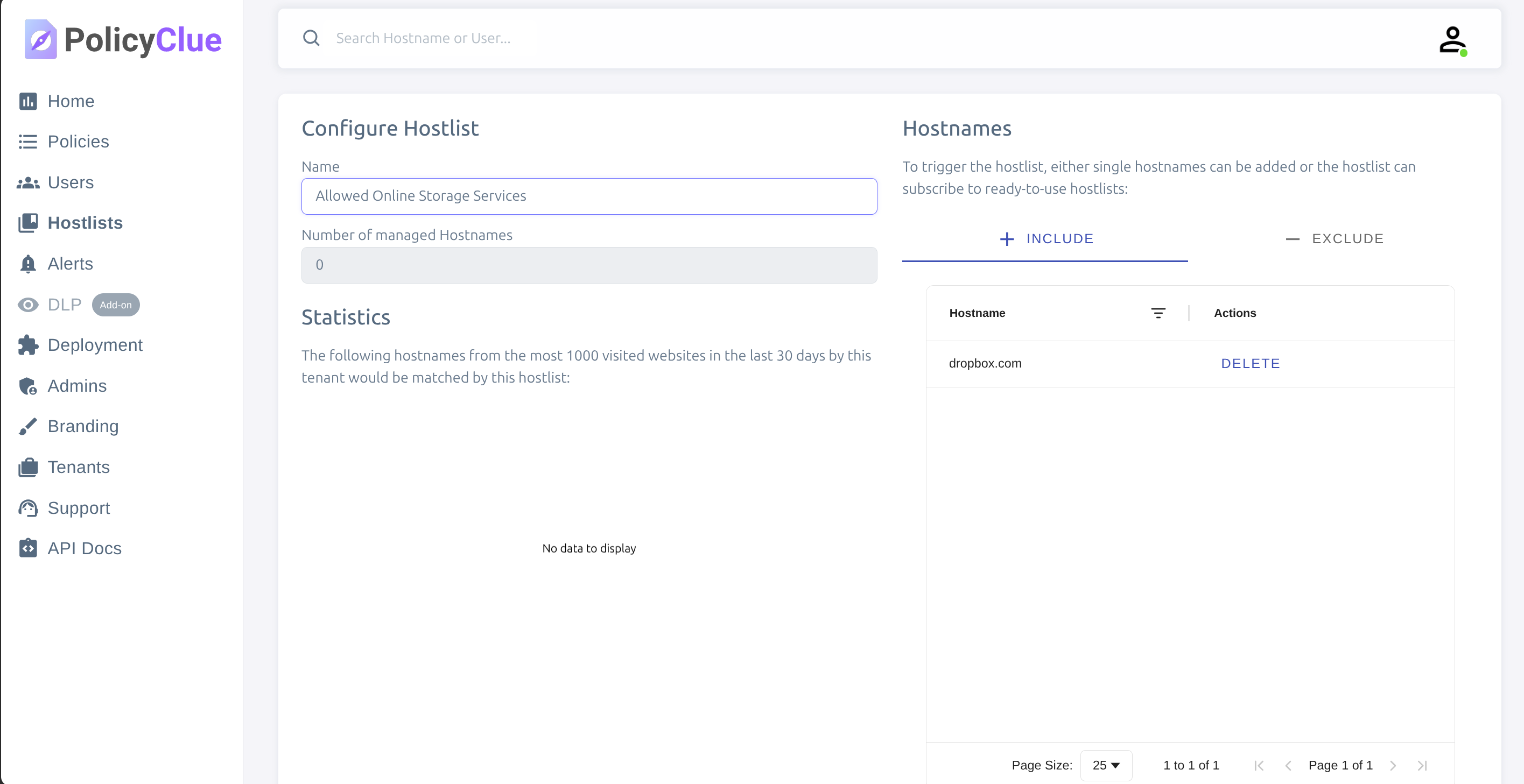
Use the preview feature to see which domains and subdomains will match. Attach the new rule set to one or more policies. Review it regularly to keep it aligned with how your organization uses online tools.